
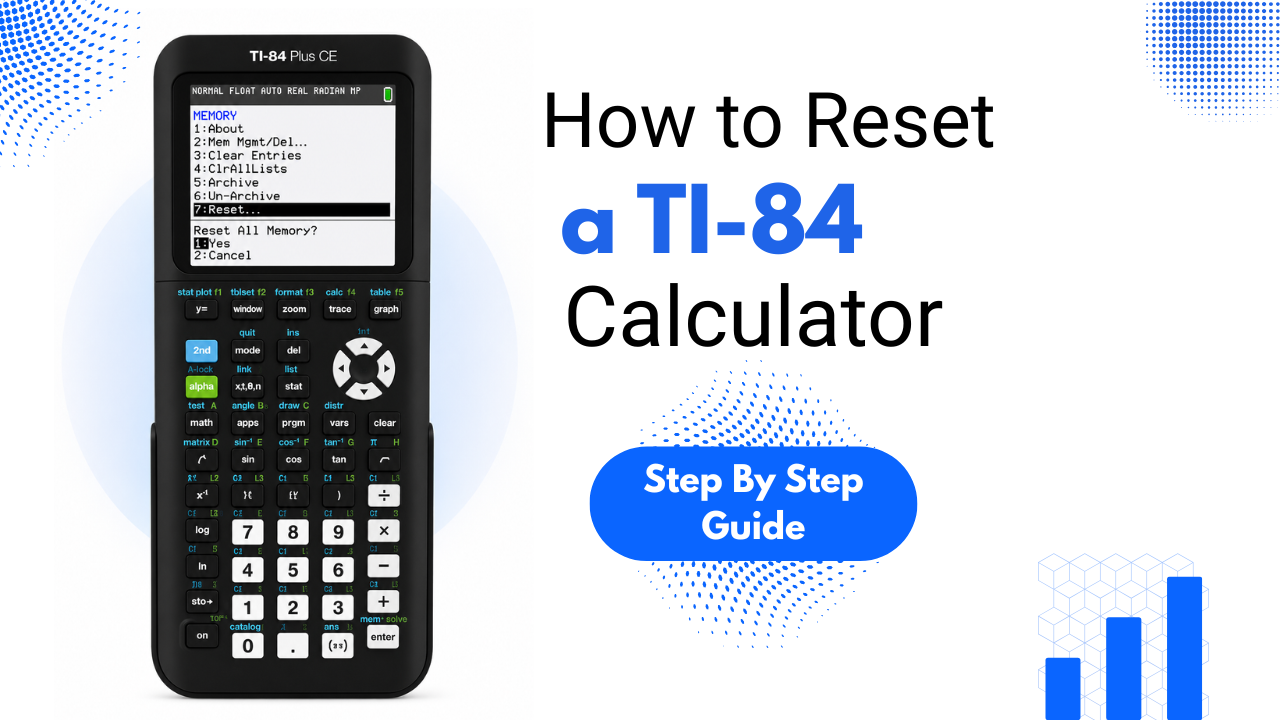
How to Reset a TI-84 Calculator
A calculator that shows errors on equations, runs slowly, or displays strange graphs usually has cluttered memory. Before thinking it’s broken, try resetting your TI-84 Plus calculator. This can fix most issues in under a minute. This guide covers three different ways to reset a TI-84 Plus calculator, a quick RAM reset for everyday glitches, a full memory wipe for a completely clean slate, and a hard reset for when the screen stops responding altogether.
A Quick Warning Before Resetting
Resetting a TI-84 calculator is a permanent action. It erases stored programs, custom lists, saved variables, and any formulas you’ve typed. Write down anything important before you reset to avoid losing it.
If you don’t have your device nearby, check the TI-84 button guide for the exact key locations mentioned here.
Which Reset Actually Fits the Problem
Not every reset does the same job, so picking the right way to reset a TI-84 Plus calculator saves time.
How to Reset a TI-84 Plus Calculator (RAM Reset)
This is the fastest way to reset a TI-84 Plus calculator, and it only takes about thirty seconds.
The screen will show RAM Cleared and restart on its own. Whatever was causing the glitch beforehand is usually gone at this point.
How to Reset a TI-84 Plus Calculator (Full Memory Wipe)
This version clears apps along with everything a RAM reset removes, but it only works on the TI-84 Plus CE. Older TI-84 Plus and TI-84 Plus Silver Edition models stop at the RAM reset stage because the full wipe option is not available on that hardware.
How to Fix a Frozen TI-84 (Hard Battery Reset)
When the screen locks up completely and no button does anything, the software menus above are not reachable, so a physical reset takes over instead.
Once the screen responds again, running through the standard RAM reset clears out whatever caused the freeze in the first place.
What a Reset Will and Will Not Fix
Software problems
|
Issue |
Fix |
|
Strange errors on valid equations |
Fixed by a RAM reset |
|
Extra graph lines that were never typed in |
Fixed by a RAM reset |
|
Sluggish button response |
Fixed by a RAM reset |
|
MEMORY FULL messages |
Fixed by a RAM reset |
Physical/hardware problems
|
Issue |
Fix |
|
Cracked screen |
Needs a hardware fix, not a reset |
|
Keys that no longer respond |
Needs a hardware fix, not a reset |
|
Dead battery |
Swap in fresh AAA batteries |
|
Clock/date keeps resetting |
Round lithium backup battery needs replacing |
When the screen locks up completely and no button does anything, the software menus above are not reachable, so a physical reset takes over instead.
FAQs
Conclusion
Most TI-84 problems are due to cluttered memory, not hardware faults. Knowing how to reset a TI-84 Plus can fix many issues without needing a replacement. A RAM reset handles most everyday glitches. Use a full wipe and hard reset for specific problems. For details on what gets erased during a reset, check the how to clear TI-84 memory guide.