
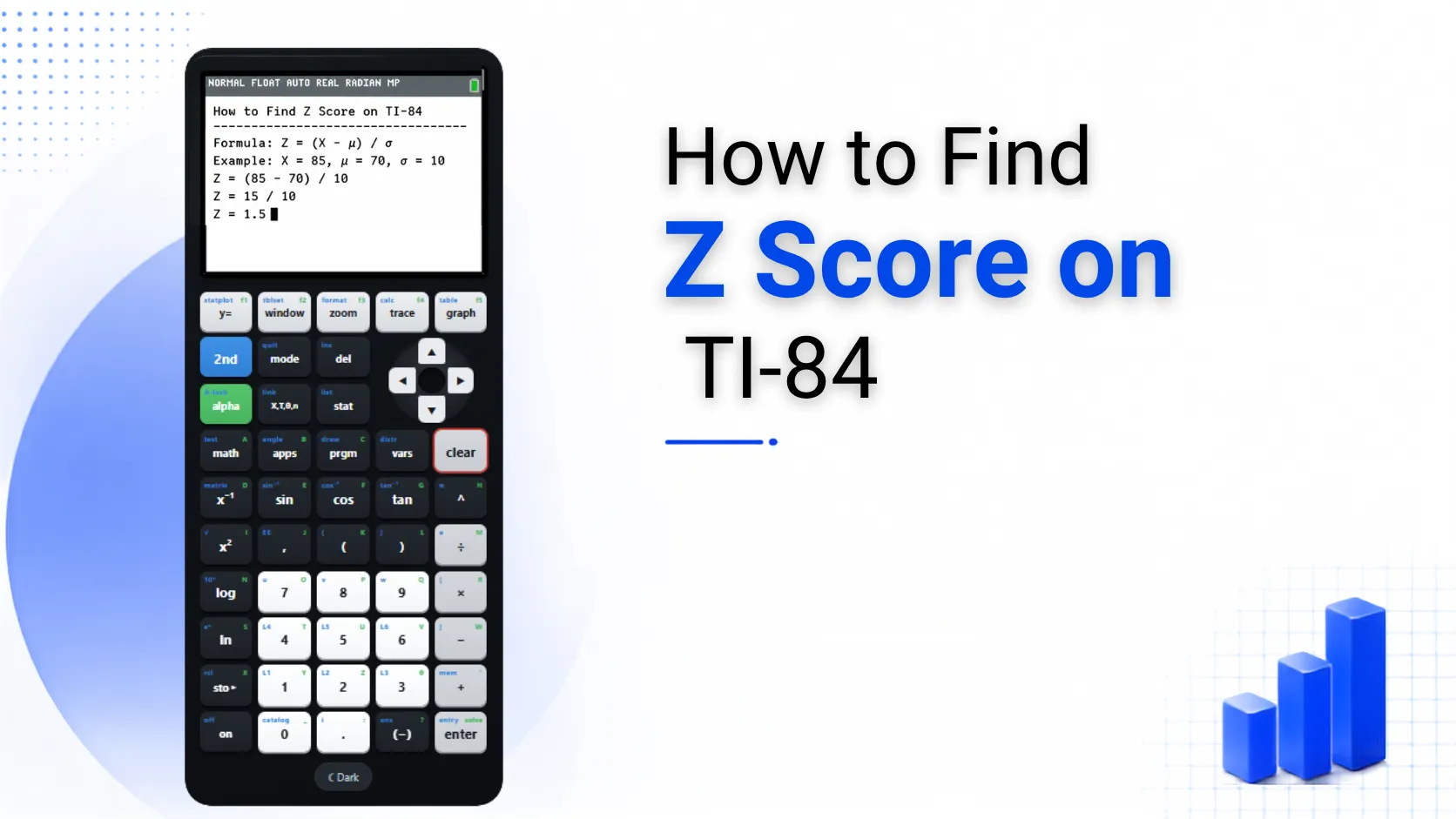
How to Find Z Score on TI-84
A z-score tells you how far a value is from the mean, measured in standard deviations. You can find a z-score on the TI-84 Plus CE in different ways, depending on the information given in the problem. Some questions provide the mean and standard deviation, while others give you a list of raw data and require the calculator to find them. This guide shows you how to find a z-score on the TI-84 Plus CE using both methods. It also explains how to find a p-value when the z-score is already known.
If you don’t have a physical device, you can also calculate on TI-84 online and follow the same steps in your browser.
The Z Score Formula
Before using the calculator, it’s good to understand its workings. The formula for a z score is:
z = (x − μ) / σ
In this formula, x is the value being tested, μ is the population mean, and σ is the standard deviation. A positive z score indicates the value is above the mean. A negative score means it is below the mean. A score near zero shows the value is close to average.
Method 1: Calculating a Z Score Manually
This method for finding a z score on TI-84 works best when the mean and standard deviation are already given in the problem, so the calculator only needs to handle the arithmetic.
For example, with a value of 82, a mean of 75, and a standard deviation of 4, typing (82 − 75) / 4 and pressing ENTER returns 1.75. That means the value 82 sits 1.75 standard deviations above the mean.
Method 2: Finding a Z Score From a List of Data
This method for finding a z score on the TI-84 is useful when analyzing a full dataset. It works well when the mean and standard deviation are not provided in advance.
Using the same formula with different values gives the z score for each entry in the dataset. You don’t need to retype the whole thing.
How to Find P Value From Z Score on TI-84
Once a z score is known, converting it into a p value uses a completely different function on the calculator.
For a standard normal distribution, the mean is 0 and the standard deviation is 1. To find the probability below a z score of 1.5, type normalcdf(-99, 1.5, 0, 1) and press ENTER. The result, 0.9332, means about 93.3 percent of values fall below that point on the curve. Typing -99 and 99 in place of negative and positive infinity works fine for most classroom level problems.
Common Mistakes to Watch For
Small mistakes often appear in this type of calculation. Catching them early can prevent confusion on tests or homework.
Storing the mean and standard deviation as variables after running 1-Var Stats helps avoid retyping long decimals. Press STO and then a letter to save that value as A or B. You can reuse these in the z-score formula for every value in a dataset.
FAQs
Conclusion
Finding a z score on the TI-84 depends on the method you choose. You can either plug numbers into a formula or use 1-Var Stats for a dataset. Once you know the basics, switching between z scores and p values is quick. For more on what the calculator can do beyond statistics, check the TI-84 usage tips page.