
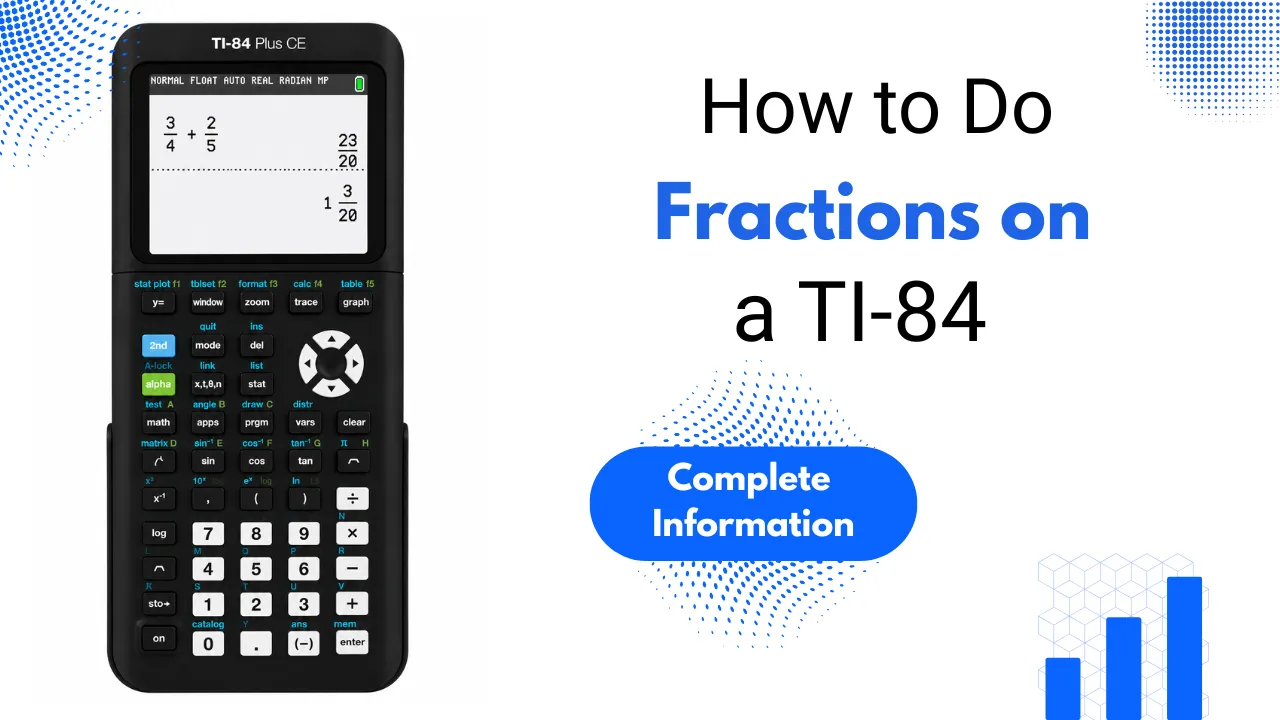
How to Do Fractions on a TI-84
A wrong answer on a fraction problem often isn’t due to bad math. It usually happens from typing the fraction incorrectly or letting the calculator round it without realizing. Learning to handle fractions on a TI-84 correctly keeps answers exact. This matters on tests where rounded decimals can be marked wrong. Here you will get an explanation on how to enter fractions, simplify them, switch between decimals and fractions, and fix display issues. It also suggests some good habits to develop early on.
What Is a Fraction on the TI-84?
A fraction on the TI-84 is a way to enter and work with numbers written as a numerator over a denominator, such as ½, ¾, or 5/8. The calculator can display fractions as exact values instead of automatically changing them into decimals. You can also simplify fractions and switch between fraction and decimal forms when needed.
Entering a Fraction on the TI-84
The TI-84 has a built-in fraction template. This feature avoids manual division and keeps numerators and denominators exact. Learning this step first simplifies using other fraction tools on the TI-84, as they all designed on this template.
This method works well for both simple and mixed fractions. It keeps the numerator and denominator separate instead of turning them into a single decimal. On the TI-84 Plus CE, the higher resolution screen makes the fraction template easier to read while typing. The button sequence is the same across all TI-84 models.
How to Simplify Fractions on the TI-84
Once you enter a fraction, simplifying it on a TI-84 is quick. The steps are the same, no matter how big the numbers are.
The Frac option works after any calculation, not just with new fractions. This feature helps clean up messy results in longer problems.
Converting Between Decimals and Fractions
Switching between decimals and fractions is easy on the TI-84. You’ll use the same MATH menu from before, so there’s nothing new to learn.
On tests like the SAT or ACT, using fractions helps you avoid rounding penalties from truncating decimals.
Fixing Fraction Display Problems
A TI-84 that shows decimals instead of fractions usually has a settings issue, not a malfunction. This confuses students because the calculator seems to be broken. In reality, it’s just using a mode from an earlier session that wasn’t changed back.
If issues persist, try a RAM reset. This can fix display quirks that remain after changing settings. But remember, a reset clears more than just display preferences. The how to clear TI-84 memory details what gets erased first.
Common Mistakes When
Doing Fractions on a TI-84
A few small mistakes cause most errors when using fractions on a TI-84. They’re easy to fix once you spot them. Taking a moment to pause before hitting ENTER can help catch these mistakes before they lead to wrong answers.
Typing a Fraction as Plain Division
If you type 3 divided by 4, it calculates 0.75 instead of keeping it as a fraction. Use the ALPHA and Y= template from the start.
Forgetting to Press Frac After a Calculation
Even a correct calculation can show as an unsimplified decimal if you don’t select the Frac option from the MATH menu afterward.
Mixing Up Frac and Dec
The Frac and Dec options are right next to each other in the MATH menu. Choosing the wrong one converts a value in the opposite direction than you want.
Leaving Old MODE Settings Unchecked
MODE settings from a previous session stay active until you change them. A borrowed calculator might already have the fraction display turned off by default.
FAQs
Conclusion
Getting comfortable with how to do fractions on a TI-84 helps avoid common errors in homework and exams. The fraction template keeps entries tidy. The Frac and Dec options convert values instantly. A quick MODE check clears up display issues. These steps are quick to learn. Once they become second nature, fraction problems feel like a normal part of using the calculator. For a different type of visual math, check out the steps to graph inequalities on TI-84 next.